> ## Documentation Index
> Fetch the complete documentation index at: https://docs.axuremart.com/llms.txt
> Use this file to discover all available pages before exploring further.
# Codex 使用教程
> 在编辑器、终端和 ChatGPT 桌面端中使用 Codex
## 1、编辑器(VSCode / Trae / Cursor)中使用
### 方式一:可视化聊天插件使用(推荐)
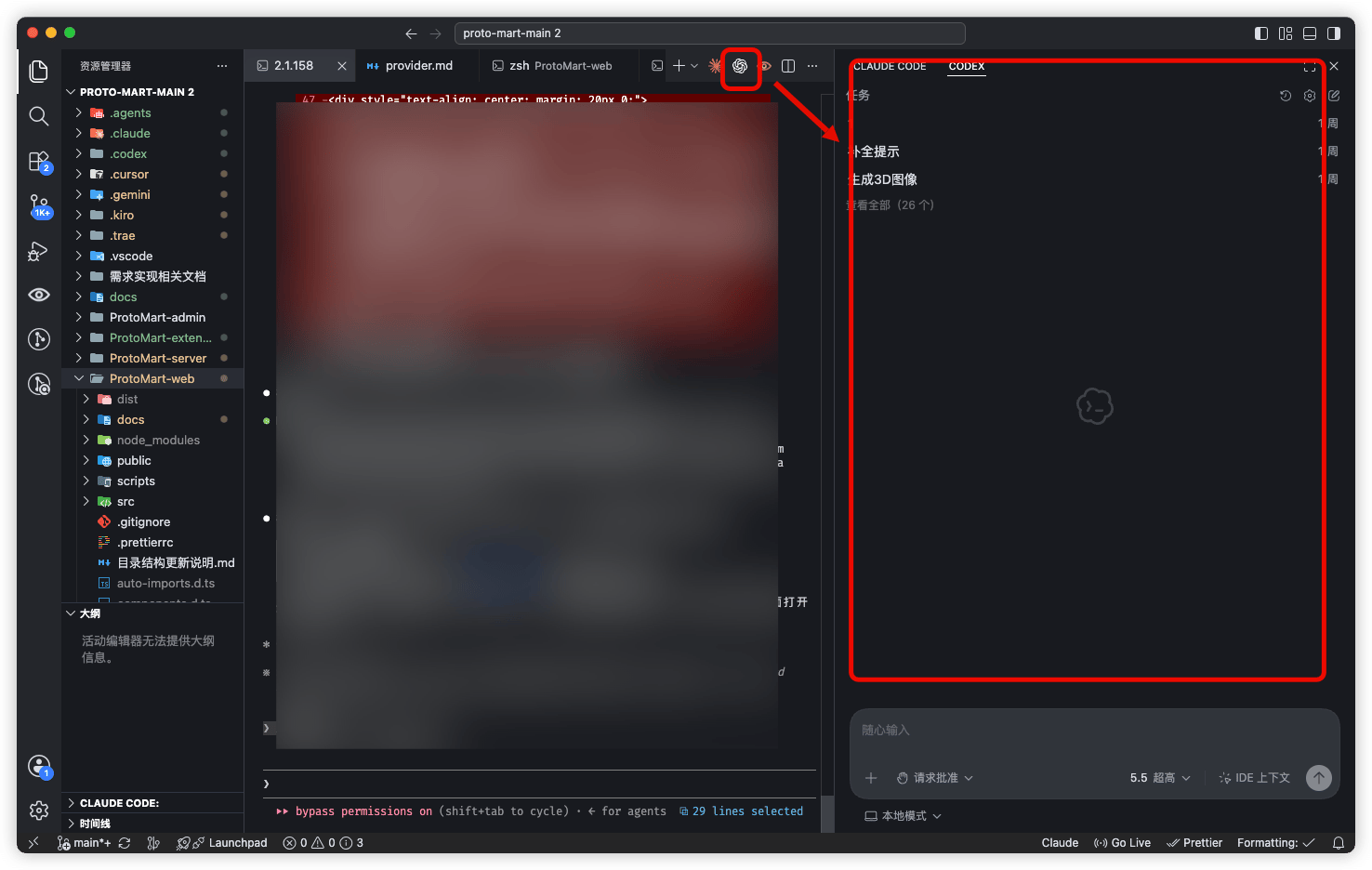
1. 确保 codex 插件已安装
2. 点击图标启动
 ### 方式二:终端使用
1. 打开终端:编辑器顶部菜单「终端」→「新建终端」
2. 输入启动命令
```bash theme={null}
codex
```
## 2、ChatGPT 桌面端中使用
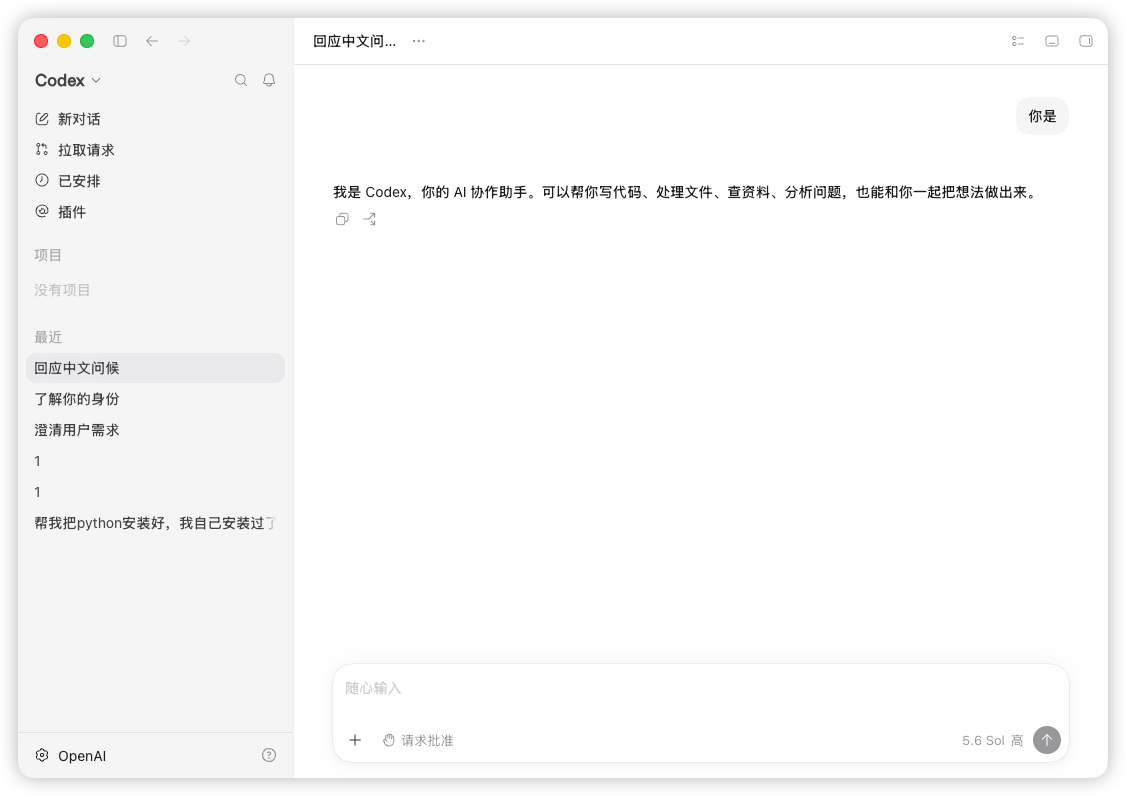
1. 确保完成[模型配置](/gpt/config)
2. 打开桌面端,发一条消息测试是否回复。正常回复则配置完毕,无法回复请检查[模型配置](/gpt/config)
### 方式二:终端使用
1. 打开终端:编辑器顶部菜单「终端」→「新建终端」
2. 输入启动命令
```bash theme={null}
codex
```
## 2、ChatGPT 桌面端中使用
1. 确保完成[模型配置](/gpt/config)
2. 打开桌面端,发一条消息测试是否回复。正常回复则配置完毕,无法回复请检查[模型配置](/gpt/config)
 ## 3、image-2 模型生图使用
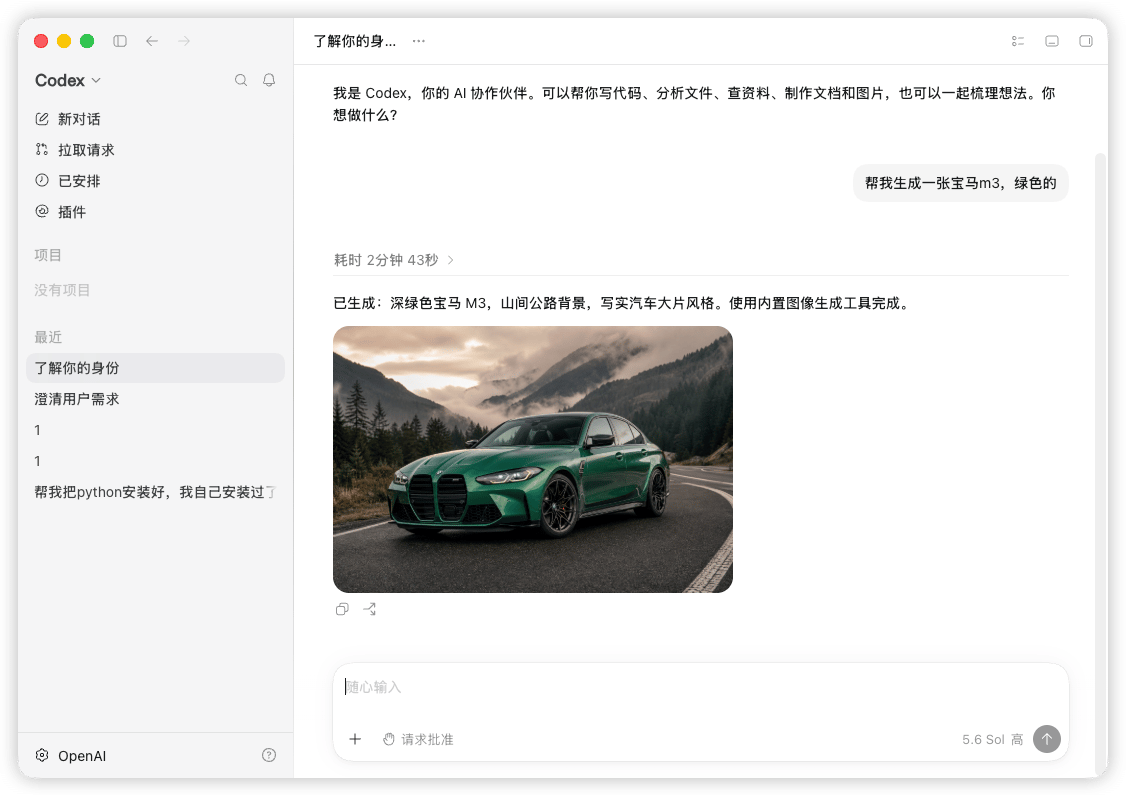
1. 不需要独立配置 image-2 模型
2. 在 codex 中直接输入:使用 image-2 模型做图
## 3、image-2 模型生图使用
1. 不需要独立配置 image-2 模型
2. 在 codex 中直接输入:使用 image-2 模型做图
 This documentation is built and hosted on [Mintlify](https://mintlify.com), a developer documentation platform.