> ## Documentation Index
> Fetch the complete documentation index at: https://docs.axuremart.com/llms.txt
> Use this file to discover all available pages before exploring further.
# Claude 使用
> 终端对话和编辑器插件两种使用方式
## 方式 1:终端对话(推荐)
### 为什么推荐终端方式?
使用命令终端可以开启最大权限(claude),AI 执行过程中不需要反复确认,直接等待 AI 执行任务即可。如果用可视化窗口,和 AI 对话就需要不断确认,会比较费时间。
### 操作步骤
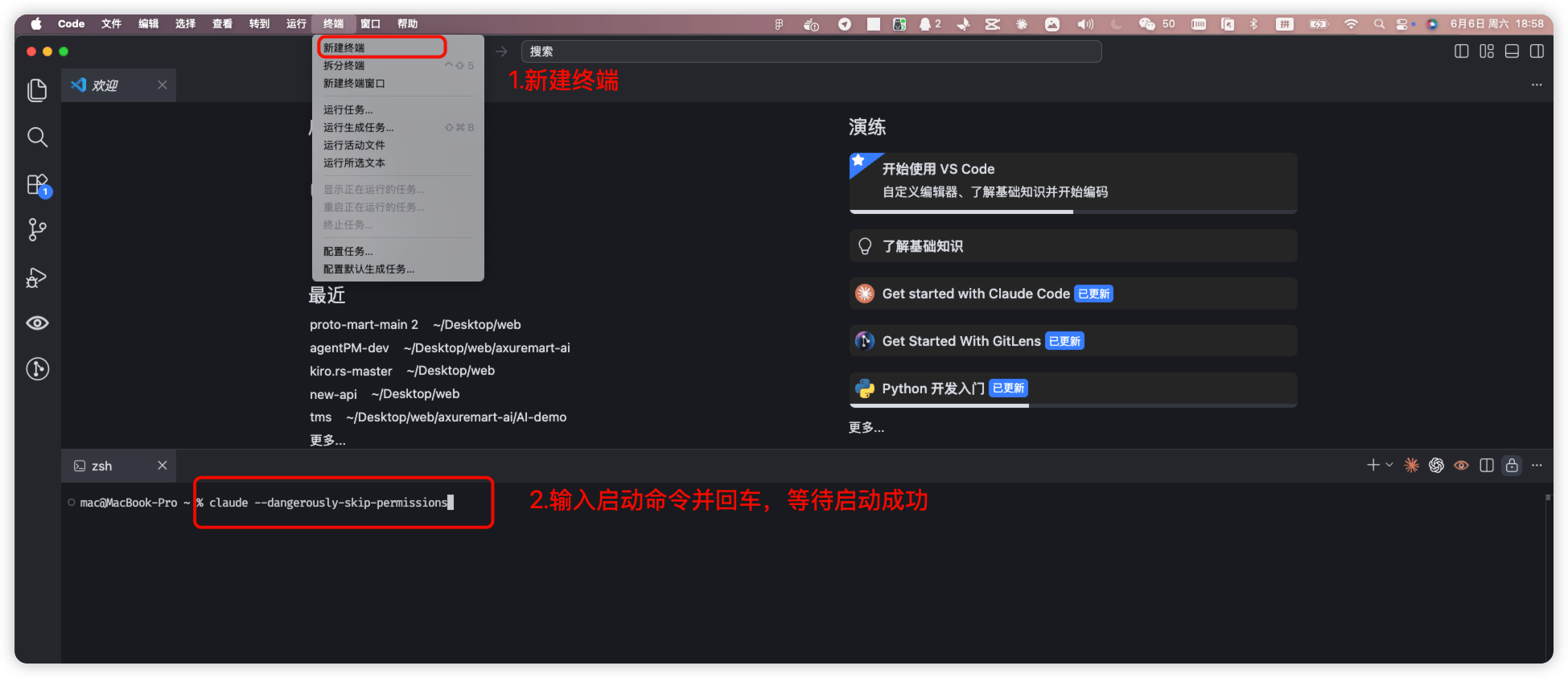
1. 打开终端:VSCode 顶部菜单「终端」→「新建终端」
2. 首次启动
```bash theme={null}
claude --dangerously-skip-permissions
```
 3. 恢复上次对话记录
```bash theme={null}
claude --continue --dangerously-skip-permissions
```
如果电脑意外关机或软件退出,下次启动时使用此命令可以恢复到上一次的对话记录,保留 AI 的上下文记忆,避免重新开始。
## 方式 2:编辑器中可视化插件(适合小白)
### 安装插件
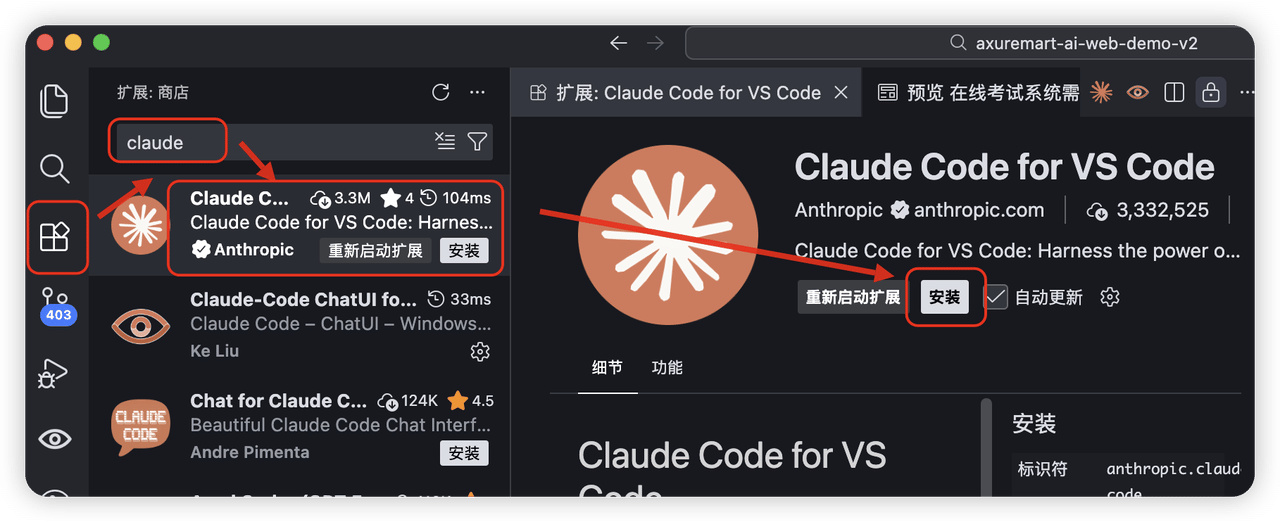
1. 编辑器中打开扩展商店(`Ctrl/Cmd + Shift + X`)
2. 搜索 Claude
3. 安装官方插件
3. 恢复上次对话记录
```bash theme={null}
claude --continue --dangerously-skip-permissions
```
如果电脑意外关机或软件退出,下次启动时使用此命令可以恢复到上一次的对话记录,保留 AI 的上下文记忆,避免重新开始。
## 方式 2:编辑器中可视化插件(适合小白)
### 安装插件
1. 编辑器中打开扩展商店(`Ctrl/Cmd + Shift + X`)
2. 搜索 Claude
3. 安装官方插件
 ### 打开对话窗口
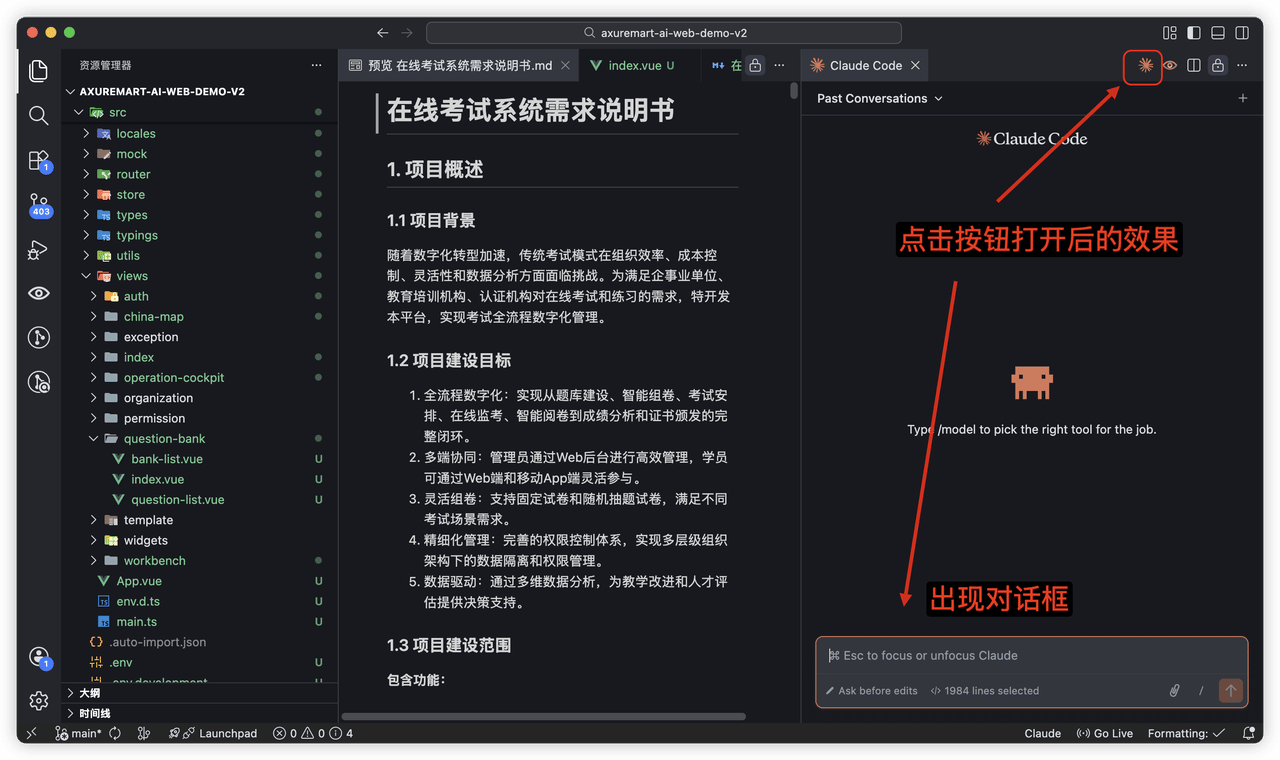
点击 VSCode 右上角 AI 图标,打开对话窗口。
### 打开对话窗口
点击 VSCode 右上角 AI 图标,打开对话窗口。
 This documentation is built and hosted on [Mintlify](https://mintlify.com), a developer documentation platform.